Livestream Help
Before the livestream starts, the livestream page should look like the image below.
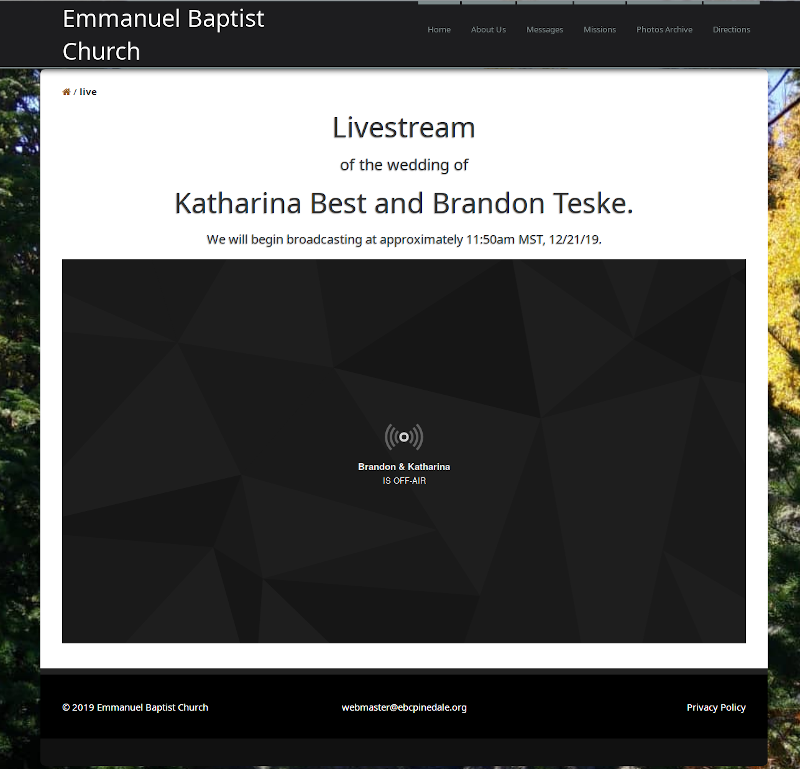
If you see an error message where the stream should appear, your browser is likely set to block trackers; these settings also block the embedded livestream. See below for instructions on disabling common blockers for specific browsers.
Firefox
Click on the purple shield icon at the left of the address bar.
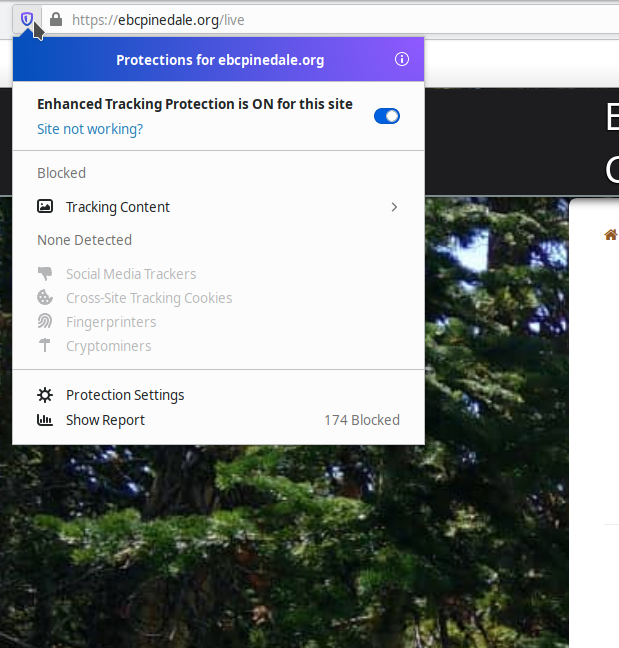
Then, click the slider to turn off Enhanced Tracking Protection.
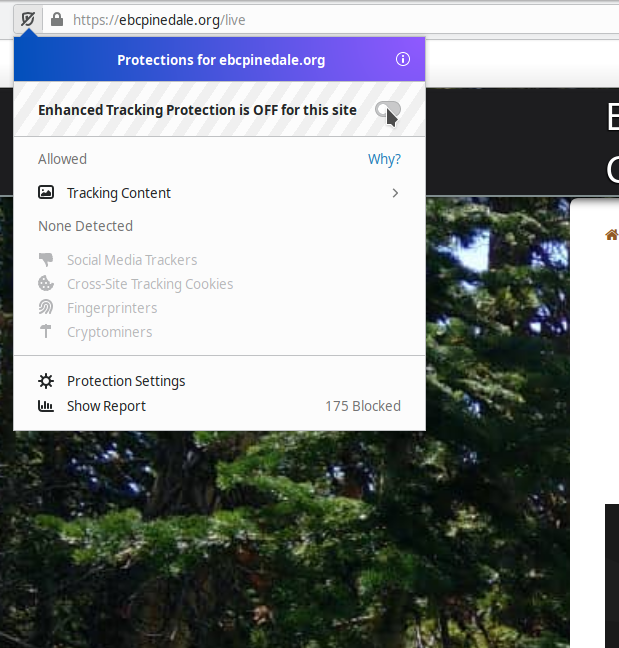
You should now be able to view the livestream. If not, you likely have an addon blocking the stream. Try disabling addons.
Brave
Click on the orange Brave icon at the right side of the address bar.
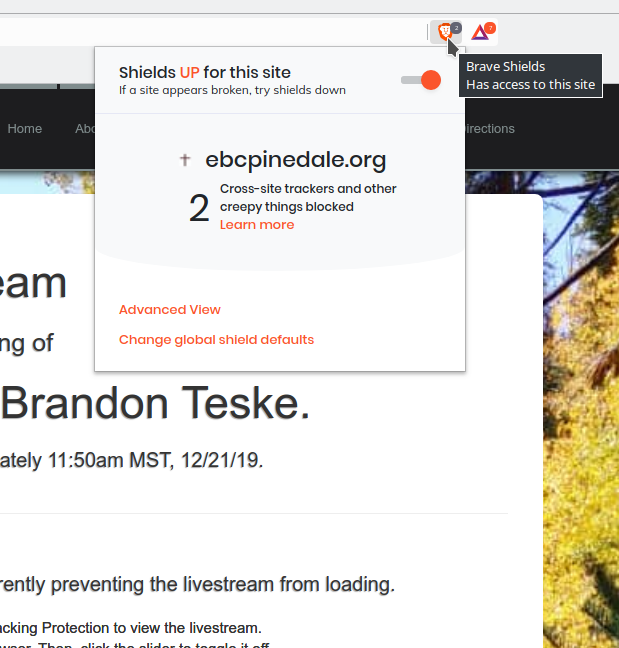
Click the slider to disable the shields.
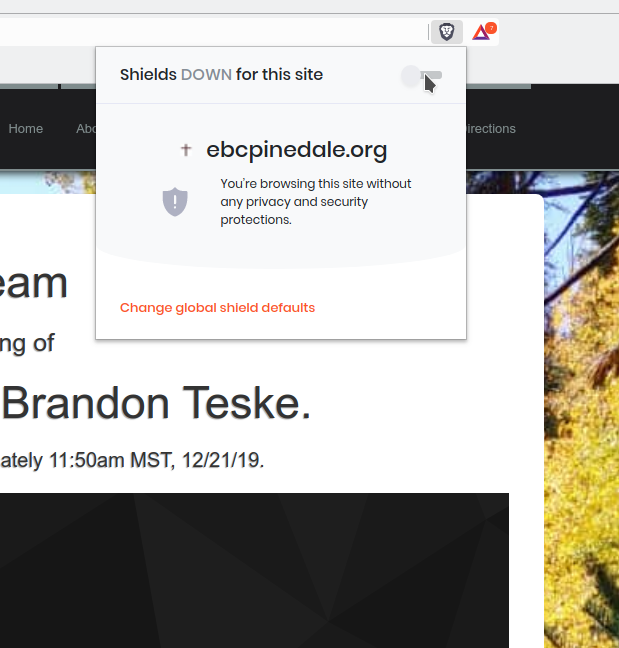
You should now be able to view the livestream. If your shields menu looks different, you likely have the advanced view enabled. Click the Cross-site trackers slider to enable the livestream.
If you still can't see the livestream, try disabling addons.